Using FROO
Everything the site can do, in one place. None of it is needed to use a list: you can simply read one from the top. The rest is there for when you want it.
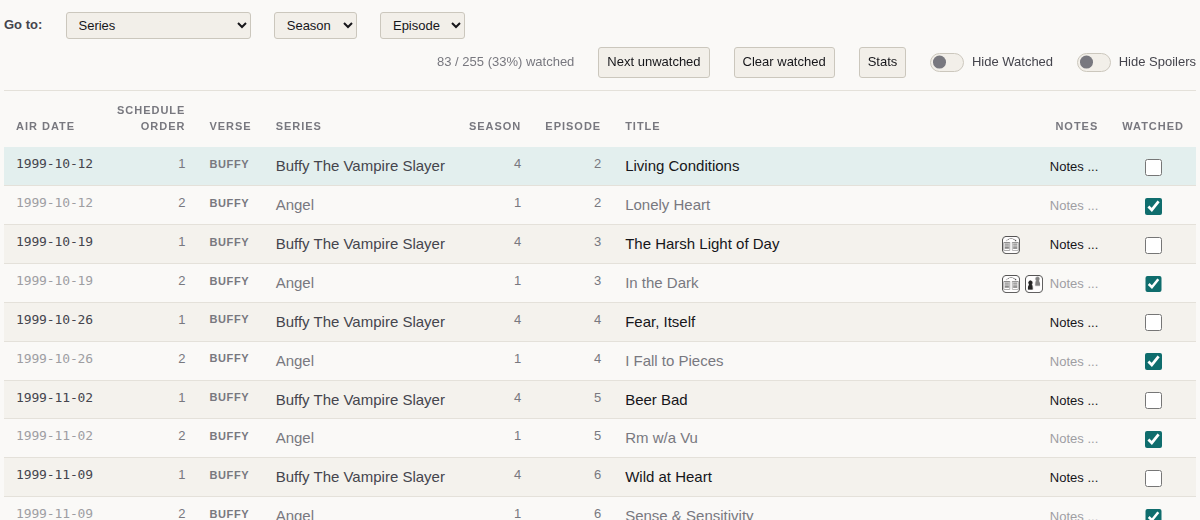
1. Reading a list
Each franchise has a page with everything in it listed in the order it was first released. Read it from the top and you are watching it the way it went out. The About page explains how the order is worked out.
The columns, left to right:
- Air Date is the first release, usually the US one. The FAQ says where the dates come from.
- Schedule Order breaks ties within a day. Where two things went out on the same night, 1 went out first.
- Verse only matters on the few lists that join separate universes together, such as Marvel. Elsewhere it is the same on every row, and on a phone it is hidden.
- Series, Season, Episode and Title are what they say. Films are listed as a series called Movies.
- Notes holds up to three small icons and a Notes… link, described below.
- Watch, where it appears, shows where you can watch the entry (section 6).
- Watched is a box to tick (section 3).
A row that is greyed out with not yet aired under its date is an episode that has been announced but has not gone out yet.
Above the table, How to read this table opens a short version of this section. Under the table there is usually a longer piece about the franchise: what is on the list, what was left off, and which dates were hard to settle.
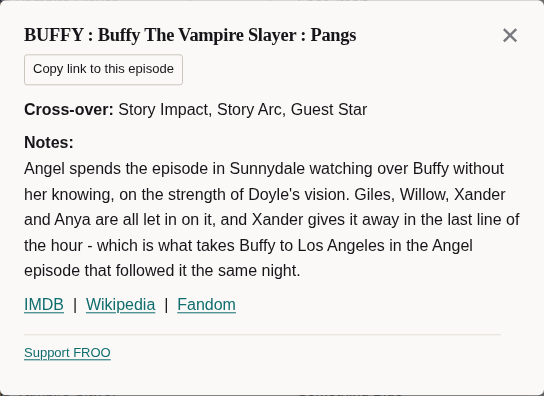
The cross-over icons
The icons in the Notes column say how an entry is tied to another series in the franchise. Hover over one, or open the notes, to see which it is.
- Story Impact: the story or dialogue refers to another series.
- Story Arc: the entry is a chapter of a story told across several series. These are the ones worth not skipping.
- Guest Star: a character from another series appears.
The notes
Notes… opens a box about that entry: what the cross-over is, links to IMDb, Wikipedia and the fan wiki, where to watch it, and sometimes a review or a cast rewatch to watch afterwards. It also has Copy link to this episode, for sending someone straight to that row.
Because a cross-over note can give the plot away, notes start out blurred on every list. Click to read one. If you would rather they were never covered, turn off Hide Spoilers at the top of the list. That is remembered for each list separately.
2. Getting around a long list
Some lists run to thousands of rows, so there are three quicker ways in than scrolling.
- Go to, at the top of the list: choose a series, then a season and an episode, and the list jumps to it.
- Next unwatched jumps to the first episode you have not ticked. When you are up to date it tells you what is coming next and when.
- A link to an episode. Every row has its own address, which Copy link to this episode in its notes gives you. Adding
#nextto a list's address, such asfroo.watch/f-buffy#next, opens it at your next unwatched episode, which makes a useful bookmark.
The site's header, the Go-to bar and the column headings stay on screen as you scroll, so you can always get back.
3. Ticking off what you have watched
Tick the Watched box on a row when you have seen it. The count above the list, such as 83 / 255 (33%) watched, keeps up as you go, and watched rows are dimmed.
- It counts everywhere at once. Many episodes are on more than one list: every NCIS episode is on three. Ticking one ticks it on every list it appears on.
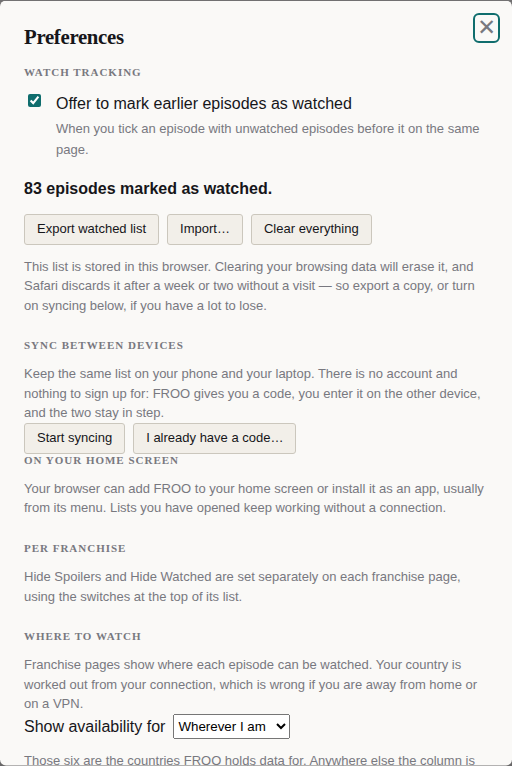
- Earlier episodes. Tick an episode with unticked ones above it and FROO offers to mark those too, with Mark them watched or Leave them. That is the quick way to catch up when you first arrive part-way through. If you would rather not be asked, tick Don't offer this again, or change it in Preferences.
- Hide Watched, at the top of the list, takes ticked rows out of the way altogether. It is remembered for each list.
- Clear watched unticks everything on that list. It offers Undo for a few seconds afterwards, as does marking earlier episodes.
- Something aired early where you are? You can still tick an episode marked not yet aired, and it then counts.
Your ticks are kept in your own browser. To keep them safe, or to have them on another device, see section 9.
4. Only the series you are watching
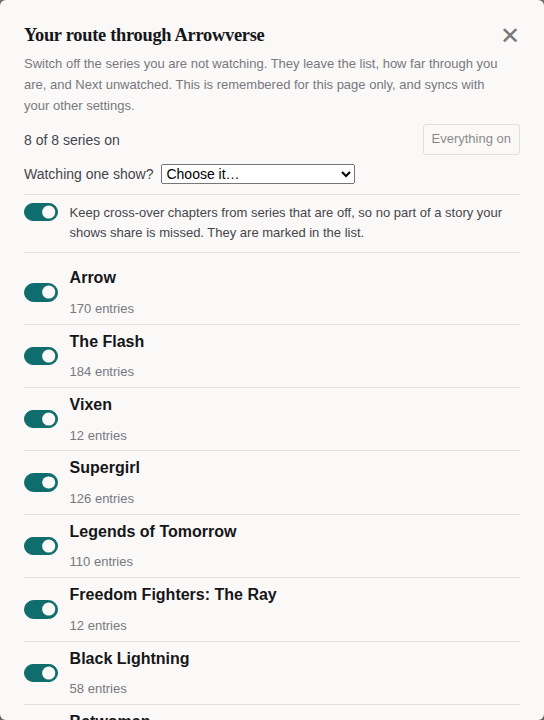
Most people are not watching everything on a list. Above the table there is a strip that says Not watching all 3 series on this list?, with a Choose series button.
- Switch series off and they leave the list. They also leave everything that counts it: how far through you are, Next unwatched, the offer to mark earlier episodes, and Carry on watching on the front page.
- Watching one show? Choose it from the menu and every other series is switched off in one go.
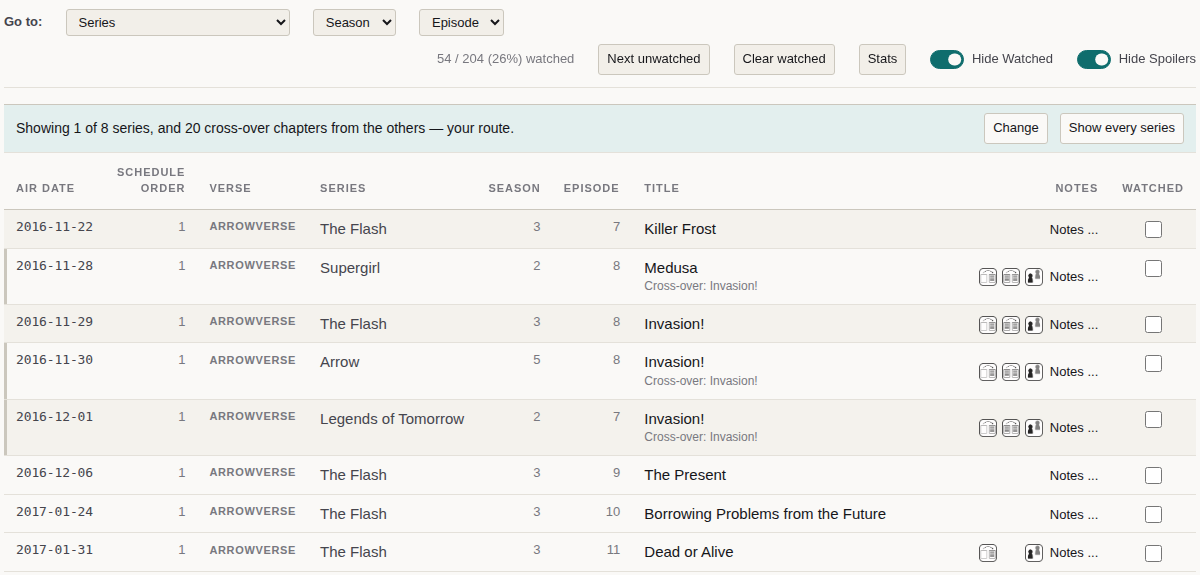
- Cross-over chapters stay. Where your show shares a story with one you have switched off, those chapters stay on your list, marked Cross-over: and the name of the story under the title. Watching The Flash, you keep all four nights of Invasion!. If you would rather see your own shows and nothing else, turn off Keep cross-over chapters.
- Getting everything back. The strip says how many series you are seeing, with Show every series to undo the lot.
Your choice is kept for each list separately. A link to an episode you have switched off still opens on it, with that one row shown and marked.
5. The Stats button
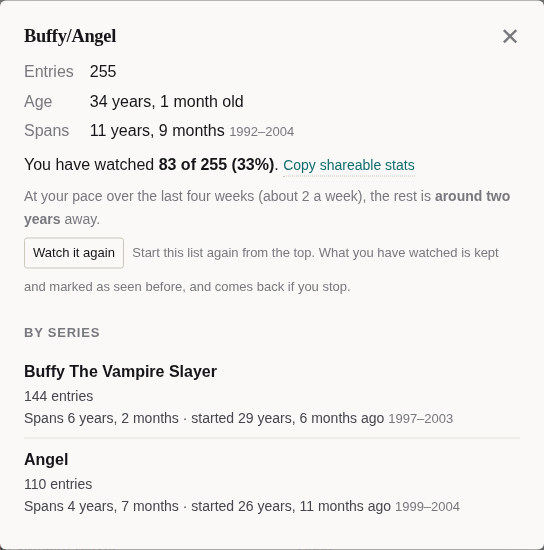
Stats, beside Next unwatched, opens a summary of the franchise: how many entries, how old it is, and the years it spans, then the same for each series. Once you have ticked something it adds:
- How far through you are, with Copy shareable stats to put a line like Buffy/Angel: 83 of 255 (33%) watched and a link on your clipboard. On a phone, or anywhere your browser has a share menu, it reads Share your progress and opens that menu instead. On a wider screen the same share is the small share icon under your progress, in the bar above the table.
- Your pace. After a few weeks of ticking it works out how long the rest will take you at the rate you have been going, and the day you would finish. On a wider screen that date also sits under your progress in the bar above the table. Episodes marked in bulk are not counted as a binge.
- Watch it again. This starts the list from the top without losing anything. Your earlier ticks stay, shown as a small grey tick beside an empty box, and the count goes by this time round. Stop rewatching brings the earlier ticks back; Finish appears once you have ticked everything again.
- Add new episodes to your calendar, on lists with a series still running (section 11).
6. Where to watch, and what to watch afterwards
The Watch column shows small badges for the services an entry is on, each linking straight to it. On a phone, where the column does not fit, the same badges are in the notes.
- A solid badge means it is included with a subscription.
- An outlined badge means you would have to rent or buy it.
- A solid badge with a ring means it is free: an official upload, such as a studio's own YouTube channel.
Your country is worked out from your connection. If that is wrong, because you are travelling or on a VPN, set it under Where to watch in Preferences. The UK, the US, Canada, Australia, New Zealand and Ireland are covered. Where an entry cannot be matched to a service reliably, it shows nothing rather than risk sending you to the wrong episode.
Some entries also have videos worth watching after them, in their notes under After you have watched: reviews, such as TrekCulture's on Star Trek, and cast rewatches, such as Katee Sackhoff's first watch of Battlestar Galactica.
7. The front page
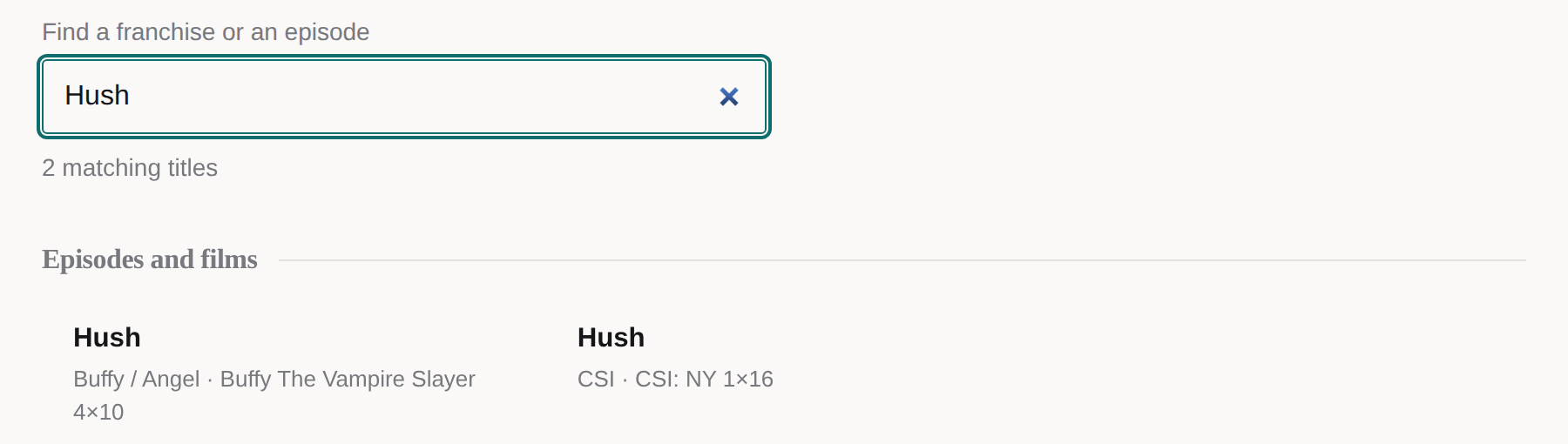
- The search box finds franchises by name or by any series on them, so typing Warehouse 13 finds Eureka. It also finds episodes and films by their title, linking straight to the row. Where a title is on more than one list, you get the smallest list that has it.
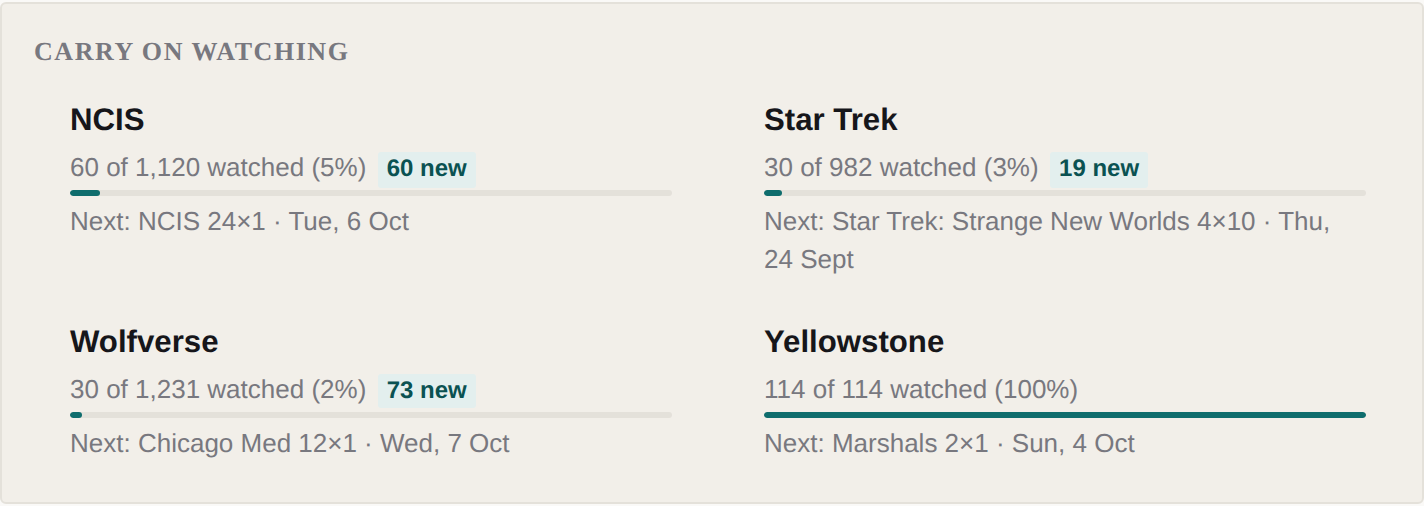
- Carry on watching appears once you have ticked something. It lists the franchises you are part-way through, most recent first, with how far you are and whether anything new has aired. Each one opens at your next unwatched episode. Next: under a franchise names that episode, or, once you are up to date, what is coming and when. A franchise you have finished stays while something new is dated, then drops off.
8. The Stats page
Stats, in the top menu, is the whole site at a glance: every franchise with its entries, series, films and years, sortable by clicking a heading. Once you have ticked something it adds:
- How far through the whole site you are, and a Watched column for each franchise. On a list where you have switched series off, that figure counts only the series you kept, and says your route.
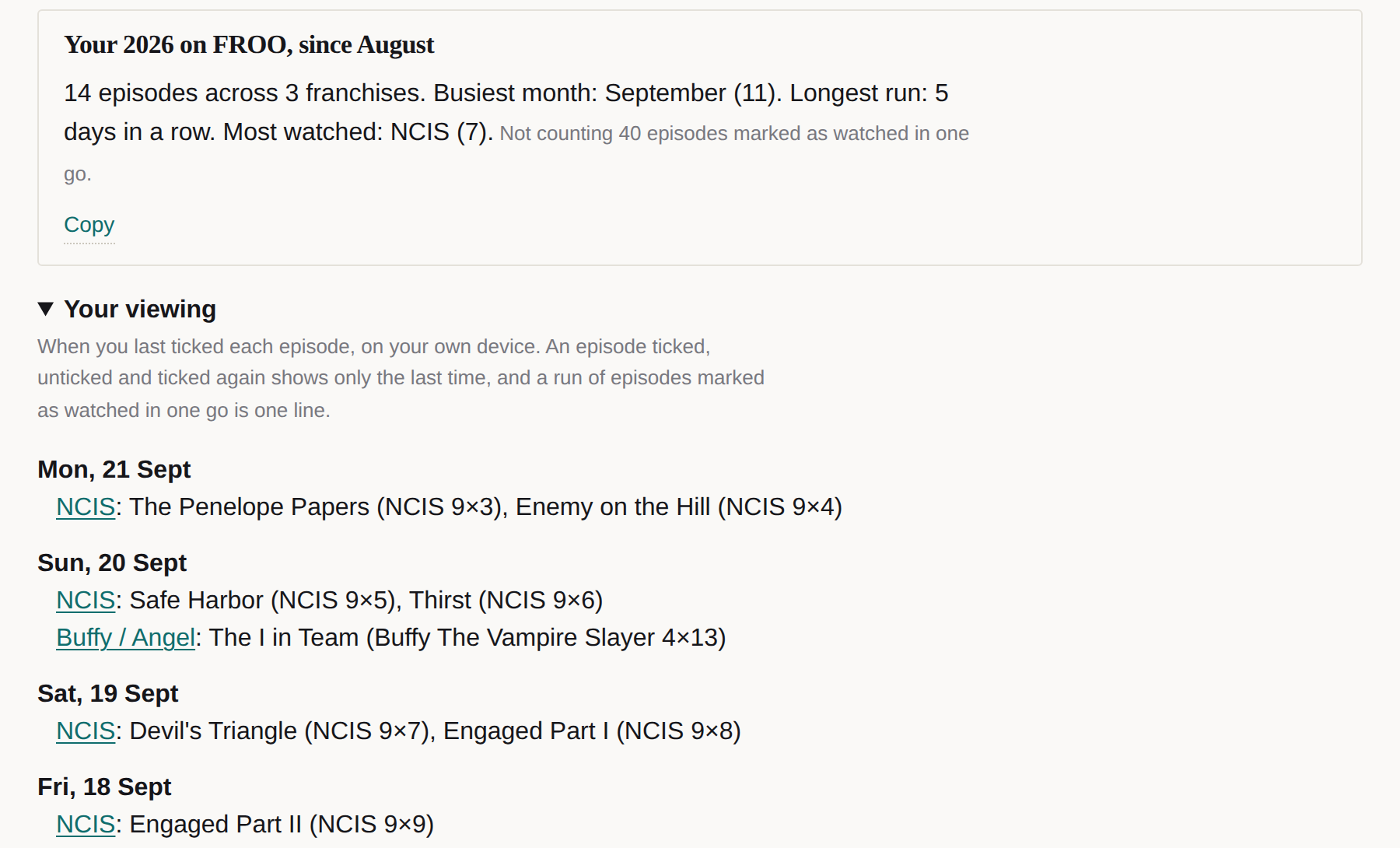
- Your viewing, a diary of what you ticked day by day, most recent first. Episodes marked in bulk show as one line.
- Your year: how many episodes, your busiest month, your longest run of days, and what you watched most. It shows by itself in December and January, and at any other time from a button in Your viewing.
9. Using FROO on more than one device
Open Preferences & Sync from the top menu on any page. There is no account and nothing to sign up for.
- On the device that has your list, press Start syncing. FROO gives you a code.
- On the other device, open Preferences, press I already have a code…, type or paste the code in, and press Link this device. Or press Show QR code on the first device and point the other one's camera at it: that opens FROO with the code already filled in, ready for Link this device.
- That is all. From then on each device sends its changes a few seconds after you stop ticking, and picks up the others' when you open a page.
Keep a copy of the code. It is the only way back to your list, and nobody can look it up or issue another. Anyone who has it can see and change your list, so treat it like a password. Stop syncing turns it off on one device; Delete synced copy removes the stored copy for good.
Without sync, Export watched list saves your ticks to a file and Import… loads one back, merging it with what is there rather than replacing it. Worth doing now and then: some browsers, Safari in particular, clear a site's data after a week or two away.
10. On your phone, and offline
FROO can sit on your home screen like an app. In Chrome or Edge, Preferences has an Install FROO button when your browser allows it. On an iPhone or iPad, open FROO in Safari, press Share, then Add to Home Screen.
On an iPhone or iPad the home-screen copy starts empty. Apple gives it a separate store from Safari, so your ticks do not come across by themselves. The first time it opens, FROO offers to bring your list across: paste your sync code in and it arrives, and the two stay in step from then on. If you have never used sync, turn it on in Safari first to get a code.
Every list you have opened keeps working without a connection, on a train or a plane. You can tick episodes offline; with sync on, they go to your other devices once you are back online.
11. Keeping up with new episodes
- Calendars. On a list with a series still running, Stats offers Add new episodes to your calendar. New episodes then appear in your calendar app on their US air dates and keep themselves up to date. There is one for everything running, too: froo.ics.
- Updates. The Updates page lists every change to the site, new episodes included, and there is an Atom feed of it for a feed reader.
- Carry on watching on the front page brings back a franchise you have finished the week something new airs.
12. What is kept, and where
Your ticks, your routes and your settings are kept in your own browser. If you turn sync on, the server keeps a copy it cannot read and cannot link to anybody. The privacy page sets it all out.
Something here not work as described, or not make sense? The feedback form is the place to say so.